Connectors
Connectors link Dialfire to the CRM you already use. Your team keeps its records in the CRM, Dialfire takes care of the calling, and the results end up back in the CRM without anyone copying data by hand.
This page explains how all connectors work. Each CRM also has its own page with the steps you need on the CRM side:
| CRM | What you link to a Dialfire campaign | Results written back to the CRM |
|---|---|---|
| HubSpot | a segment (list) of contacts or leads | fields, call with recording, meeting, notes |
| Pipedrive | deals of a pipeline stage, or a lead filter | fields, call activity, meeting, notes |
| Salesforce | a campaign (its leads and contacts) | fields, campaign member status, call task, event |
| Microsoft Dynamics 365 Sales | a marketing list (leads or contacts) | fields, phone call activity, appointment |
| Zoho CRM | a Zoho CRM campaign (its leads or contacts) | fields, call, meeting, lead conversion |
| Zoho Bigin | a view of deals | fields, call, meeting |
| Zendesk Sell | deals of a pipeline stage, or all leads | fields, call with outcome |
| Freshsales | a view of deals | fields, call, appointment |
| noCRM.io | a prospect list, or leads of a pipeline | fields, call, prospect-to-lead conversion |
| Firmao | all contacts or all companies | nothing yet (one-way) |
You can also connect other systems with the Sync Client V2 or the Zapier App. An epilot integration is available on request. Please contact our support.
How a connector works
- Connect your CRM account. On connect.dialfire.com you choose your CRM, sign in to Dialfire and allow Dialfire to access your CRM.
- Link a list to a campaign. You choose which records to call (for example a HubSpot segment or a Pipedrive pipeline stage). Dialfire creates a new campaign for them. We call this link a binding.
- Call. The records appear in the campaign as contacts, and your agents call them as usual.
- Results flow back. After each call Dialfire writes the outcome to the CRM: changed fields, a call entry with the result and, where available, the recording and any appointment made.
Before you start
- A Dialfire user with administrator rights. Only users in the admin team can set up connectors. Other users see the message "Please login with a user that has 'admin' privileges in your account."
- A CRM user with enough permissions. The connector works with the permissions of the CRM user who connects it. That user must be able to read the records you want to call and to change them, so the results can be written back. The CRM pages tell you what each CRM needs.
- The records you want to call, grouped in the CRM. For example a list, a view, a campaign or a pipeline stage. Prepare it before you link it.
No Dialfire account yet? When you start from the CRM, you can create one on the way.
Connecting an account
- Open connect.dialfire.com and click Connect on your CRM's card.
- Sign in with your Dialfire administrator user.
- Your CRM asks whether Dialfire may access your data. Confirm. Some CRMs (Freshsales, noCRM.io, Firmao) ask for an API key instead. The CRM pages explain where to find it.
- The connector page opens and shows your CRM account.
You can connect several CRM accounts to one Dialfire account with Add account, for example two HubSpot portals. Each account then has its own entry in the list on the left.
Linking a list to a campaign
At the top of the connector page:
-
Choose the CRM source on the left, i.e. the list, view, campaign or pipeline stage whose records you want to call.
-
Choose the Dialfire campaign type on the right. There are usually two:
- a basic campaign for plain outbound calls, and
- a calendar campaign, where agents can book appointments during the call. The appointments are sent to the CRM.
Or choose -- clone existing Dialfire campaign -- to copy a campaign you have already set up, with all its settings.
-
Enter a campaign title.
-
Click .
Dialfire creates a new campaign and links it to the CRM source. You can create as many bindings as you need, for example one list for first calls and another for follow-ups.
What the new campaign contains
- a Call task: new records from the CRM arrive here and are called,
- a "… Push" task (for example Hubspot Push): this sends each call result to the CRM,
- a task for completed contacts,
- a contact form with the CRM fields you chose.
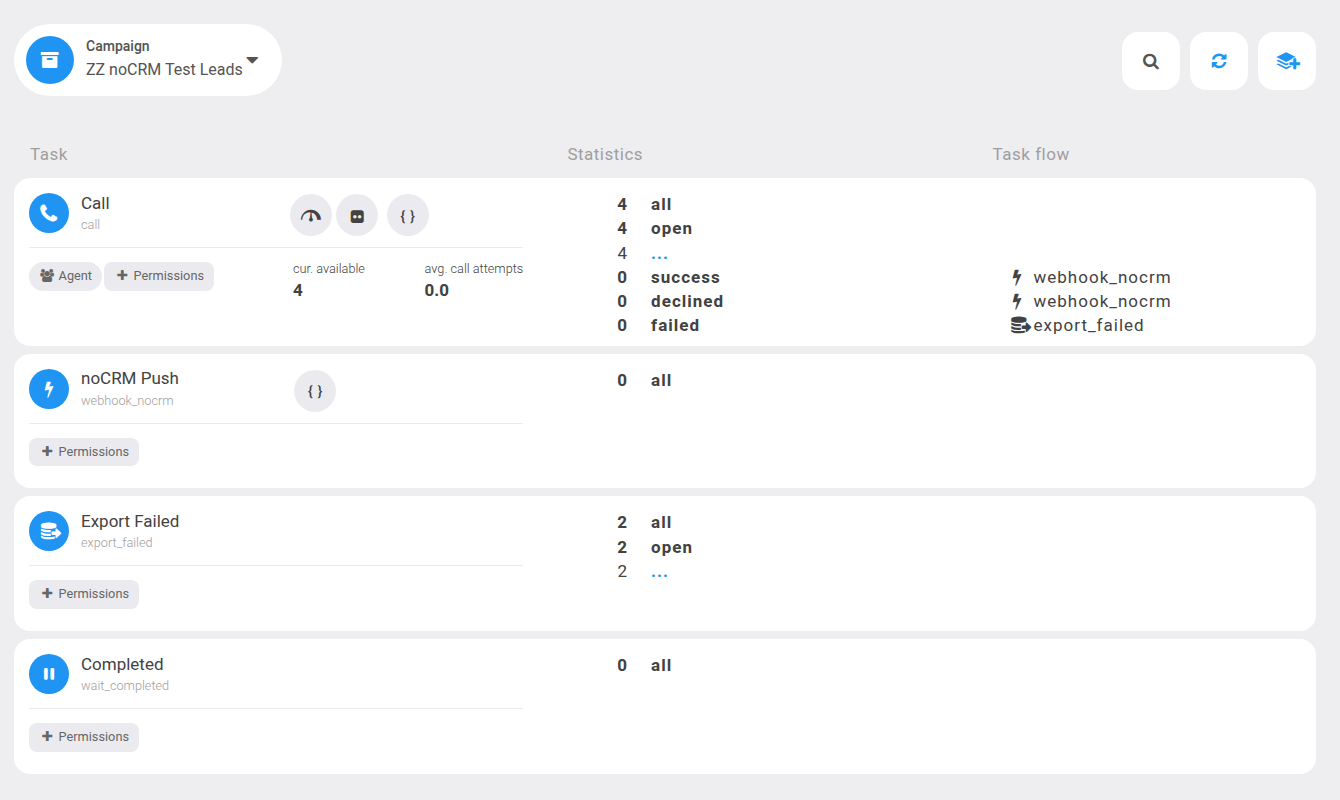
You can adjust the campaign like any other Dialfire campaign. Only keep the Push task in the flow, or no results reach the CRM.
Choosing fields
Open a binding with the button to see all CRM fields. Useful fields are already selected when you create the binding. For each field you choose:
| Option | Meaning |
|---|---|
| Don't sync | The field is ignored. |
| Import only (HubSpot) | The value is shown in Dialfire but never written back. HubSpot's read-only fields only offer this option. |
| Sync data only | The value comes from the CRM, and changes made in Dialfire are written back. |
| Sync data and update form | Like Sync data only, and the field is also added to the Dialfire contact form with the right type, for example a dropdown with the CRM's options. |
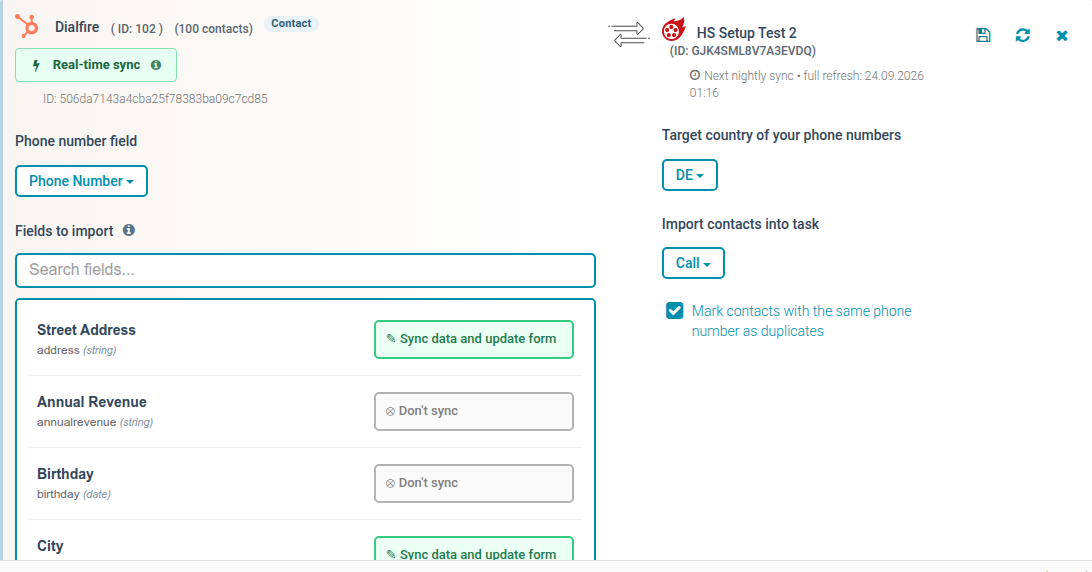
Save with the button again. New fields appear in the contact form after the next Synchronize.
Only selected fields are written back. A field set to Don't sync is never changed in the CRM, even if the campaign fills it.
Phone numbers
- Which number is dialed: some CRMs let you pick the phone field in the binding (for example Phone or Mobile). Others always use the main phone field. The CRM pages give the details.
- Target country of your phone numbers: numbers without a country code are treated as numbers from this country.
- Mark contacts with the same phone number as duplicates: if two records share a number, only the first one is called. The other is set aside as a duplicate.
Records without a usable phone number are still imported, but they cannot be called.
How and when data is synchronized
From the CRM to Dialfire
| What | When |
|---|---|
| New records in the CRM source | At the next synchronization, which happens: automatically about every 10 minutes while the campaign is being called; instantly for CRMs that support real-time updates (see below); and whenever you click Synchronize. |
| Changes to records that are already in Dialfire | Once per night, between 1 and 5 am in your Dialfire account's time zone. The page shows the time of the next run (Next nightly sync). Or immediately when you click Synchronize. |
Changes are applied at night on purpose, so that data doesn't change under an agent's hands during the working day.
Tip: the automatic synchronization runs while the campaign is being called. If you add records to a campaign that isn't running yet, click Synchronize once.
Real-time updates (new records arrive within seconds):
- HubSpot: contacts that join the segment (needs Marketing Hub Professional or Enterprise).
- Pipedrive: new deals in the linked stage.
- Salesforce: leads and contacts added to the campaign (with the Dialfire package installed).
- noCRM.io: new leads and prospects, and leads that change step.
From Dialfire to the CRM
Results are written right after the call, when the contact passes the Push task of the campaign. The call is logged on the CRM record together with its result and duration, and with the recording if there is one. Changed fields are written back too, and so is an appointment if the agent booked one (calendar campaign).
If both sides changed a field: when a value was changed in the CRM after it was imported into Dialfire, the CRM value wins and isn't overwritten. Empty CRM fields are always filled with the value from Dialfire.
Records that leave the CRM source
| CRM | What happens in Dialfire |
|---|---|
| HubSpot, Pipedrive, Salesforce, Zoho CRM, Zendesk Sell | The contact is taken out of the call queue and moved to the completed contacts. For safety this happens only once two synchronizations in a row confirm it (a manual synchronization does it immediately). |
| Zoho Bigin, Dynamics 365, Freshsales | Same as above, with one condition each: Bigin only if the view lists the deals by creation date, oldest first; Dynamics 365 only for lists with fewer than 5,000 members; Freshsales only for newer bindings (if in doubt, create the binding again). Otherwise the contact stays in the campaign. |
| noCRM.io, Firmao | The contact stays in the campaign. If it should not be called any more, give it a final result in Dialfire or remove it from the campaign. |
A contact that was already completed is put back into the call queue when it shows up in the CRM source again. So take records out of the CRM list once they are done, unless you want them called again.
Writing additional values back (advanced)
To write extra information to CRM fields, for example the agent's name or the call result in a field of your own, open the Push task in the Dialfire campaign and go to the Script tab. There you can fill CRM fields from Dialfire values, for example data.my_call_result = data.$call_status. These values are available:
| Value | Content |
|---|---|
$call_user | the agent who made the call |
$call_date | date and time of the call |
$call_status / $call_status_detail | result of the call |
$call_task | the task the contact was called in |
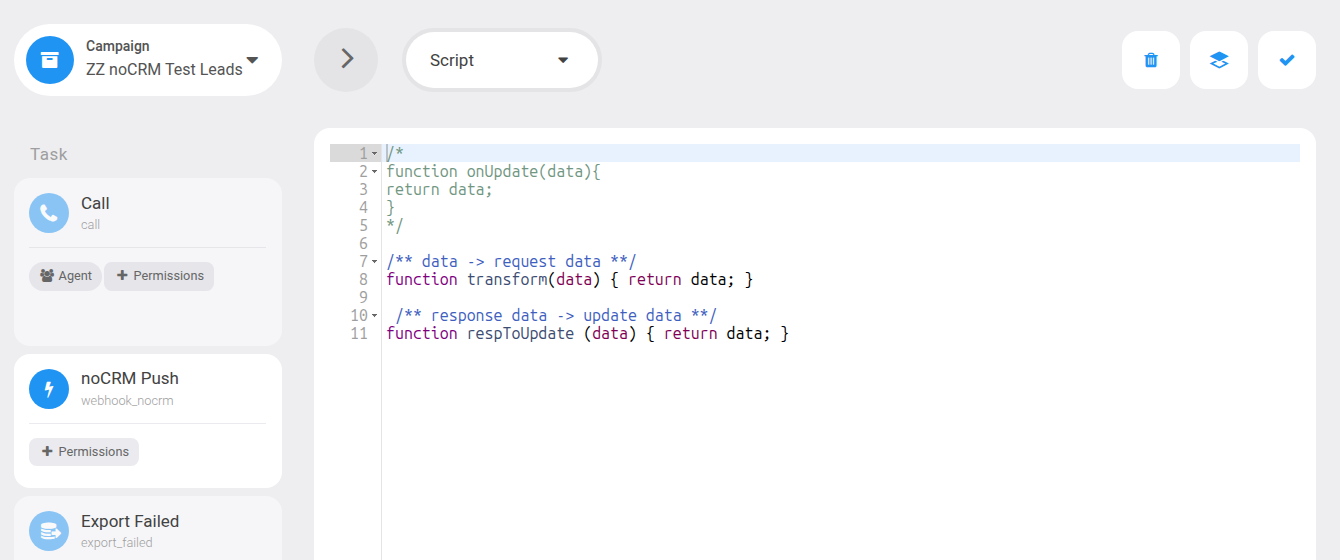
Also switch the target field on in the binding (Sync data only or Sync data and update form). Otherwise the connector leaves it out.
Status and error messages
If something goes wrong, a red Sync error label appears on the binding. Click it to see the details and the most recent errors. Retry starts again (shown only when a retry makes sense), and Dismiss hides the message. The message clears itself after the next successful synchronization.
| Message | What to do |
|---|---|
| Authentication failed. Please reconnect your CRM account. | The CRM access has expired or was withdrawn. Open the connector and authorize your CRM account again. Your bindings and campaigns stay as they are. |
| Permission denied. Please check your CRM permissions. | The connected CRM user lacks a permission. Ask your CRM administrator (see the CRM page), then authorize again. |
| Rate limit exceeded. Synchronization will retry automatically. | The CRM is limiting requests for a while. Nothing to do. The synchronization continues on its own. |
| CRM server error. This is usually temporary. | A problem on the CRM's side. It is retried automatically. |
| Resource not found in CRM. | The linked list or record was deleted in the CRM. Check the binding. |
| One or more tasks not found in Dialfire campaign … | A task the connector needs was deleted or renamed in the campaign. Restore it, or create a new binding. |
| This configuration was modified in the meantime … | Someone else changed the binding at the same time. Reload and make your change again. |
Removing a binding or an account
- on a binding stops the synchronization for that list. The Dialfire campaign and its contacts are kept.
- Deleting an account removes all its bindings. Campaigns and contacts are kept here too, but they no longer receive updates. Where Dialfire created helpers in the CRM (for example a HubSpot workflow), they are removed.
Frequently asked questions
A record I added to the CRM list doesn't show up in Dialfire. The campaign may not be running, so no automatic synchronization happened. Click Synchronize. Also check that the record has a phone number and that it isn't a duplicate of another record.
I changed a phone number in the CRM, but Dialfire still dials the old one. Changes to existing records are applied at night. Click Synchronize to apply them right away.
Why wasn't my change in Dialfire written to the CRM? Either the field isn't selected in the binding, or the value was changed in the CRM in the meantime. In that case the CRM value wins.
Can I click a phone number in the CRM to call it through Dialfire? No. The connectors don't offer click-to-call. Calls are made in Dialfire and then logged in the CRM.
Can I link an existing campaign? A binding always creates a new campaign. To keep your settings, choose -- clone existing Dialfire campaign -- as the campaign type.