Zoho CRM
The Zoho CRM connector calls the leads or contacts of a Zoho CRM campaign in a Dialfire campaign. After each call it logs the call in Zoho, updates the fields and creates a meeting when an appointment is booked. It can also convert leads into contacts.
For the principles shared by all connectors, see How connectors work.
Requirements
- A Dialfire account and a Zoho CRM account.
- A Dialfire user with administrator rights.
- A Zoho CRM edition with the Campaigns module.
- A Zoho user whose profile may view (and, for write-back, edit) the Campaigns, Leads and Contacts modules.
It doesn't matter which Zoho data center your account is in (EU, US, IN, AU, JP). Zoho's sign-in finds it automatically.
Step 1: Prepare a campaign in Zoho CRM
- Open the Campaigns module and create a campaign.
- Add the leads or contacts you want to call to the campaign. In the Leads or Contacts list, select records and choose Add to Campaigns, or add them from the campaign's related lists.
Step 2: Connect Zoho CRM
- Open connect.dialfire.com/connectors/zoho and sign in to Dialfire with your administrator user.
- Sign in to Zoho and accept the access.
Step 3: Link a campaign
- Choose the Zoho CRM campaign and the entity type: Leads or Contacts. A campaign with both needs two bindings.
- Choose the Dialfire campaign type (Basic Zoho CRM Campaign, or Zoho CRM Calendar Campaign for appointments), enter a title and click .

The new binding then appears in the list below:

In the Dialfire contact form, the agent sees a button that opens the record in Zoho CRM.
Step 4: Fields and phone number
Open the binding with . There are sections for common fields, contact fields and lead fields. Salutation, name, phone, mobile, e-mail, company, address and description are preselected. A binding can import up to 50 fields.
Phone number: Dialfire dials the Zoho Phone field.
How the synchronization works
- New campaign members arrive with the regular synchronization (about every 10 minutes while the campaign is being called, or when you click Synchronize).
- Changes are applied at night (between 1 and 5 am) or when you click Synchronize.
- Records removed from the Zoho campaign are taken out of the call queue once two synchronizations in a row confirm it (a manual synchronization does it immediately).
What Dialfire writes to Zoho CRM
After each call, when the contact passes the Zoho Push task:
- Call: a completed call "Call in Dialfire" on the lead or contact, with the direction, duration, call result, phone numbers and a link to the recording.
- Fields: changed values of the selected fields. Lookup fields (for example the account of a contact) are only imported, never changed.
- Meeting (calendar campaign): a booked appointment becomes a Zoho meeting.
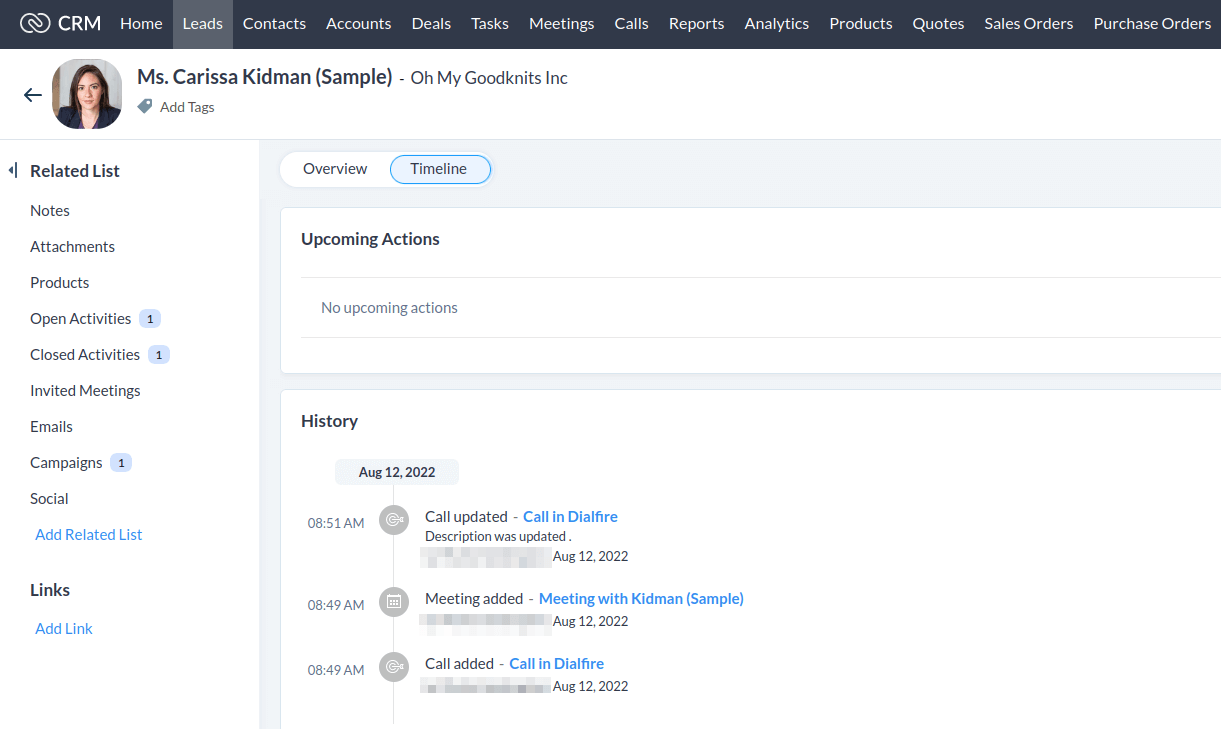
- Lead conversion (lead campaigns): the campaign has the extra results "Lead follow-up without conversion", "Convert lead to contact in Zoho CRM" and "Convert lead to account in Zoho CRM". With a convert result, Zoho converts the lead following its standard conversion, and the Dialfire contact continues as the new record.
Setting up Dialfire for your calls
Each binding creates a new campaign in your Dialfire account. Log in to Dialfire and:
- Set the caller ID for your outgoing calls.
- Add your agents in the Users menu.
- Check the call and recording settings of the tasks.
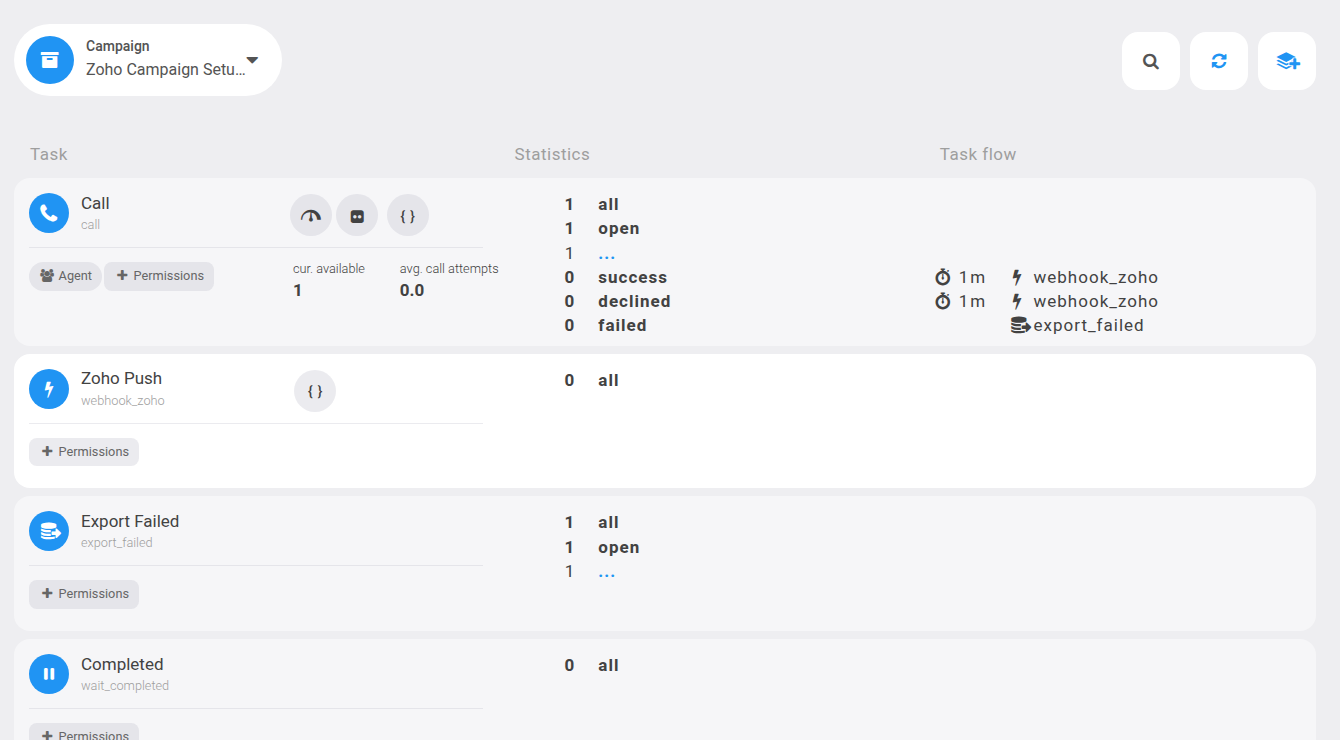
- Check the contact form (menu Campaign, Form view) and make sure the fields your agents need are visible.
The campaign template already contains the Zoho Push task, which sends the results to the CRM after each call. You can adapt the task flow and the form to your needs at any time.
Need help?
New to Dialfire? Have a look at our documentation or contact our support team.
Troubleshooting
| Situation | Solution |
|---|---|
| "You have no active campaigns in Zoho CRM" / "No Zoho CRM campaigns found" | Create a campaign in Zoho CRM (step 1), then reload. |
| "Heads up: the … module is not available in your Zoho CRM" or "… fields could not be loaded from Zoho" | The Zoho user may not view that module. In Zoho, grant View in the user's profile (Setup → Users and Control → Profiles) and check that the module is switched on (Setup → Modules and Fields → Modules). Then connect the Zoho account again. |
| The connection stops working | Open the connector and sign in to Zoho again. Your bindings stay as they are. |